

Create your study
In Alchemer, exactly as you normally would, with one difference.
- Build your study as usual.
- Leave page 1 empty: your questions start on page 2. Page 1 is where the gate goes.
You now have: a normal Alchemer study with an empty first page.
Create a verification and paste your Alchemer link
In the VerifyYou dashboard.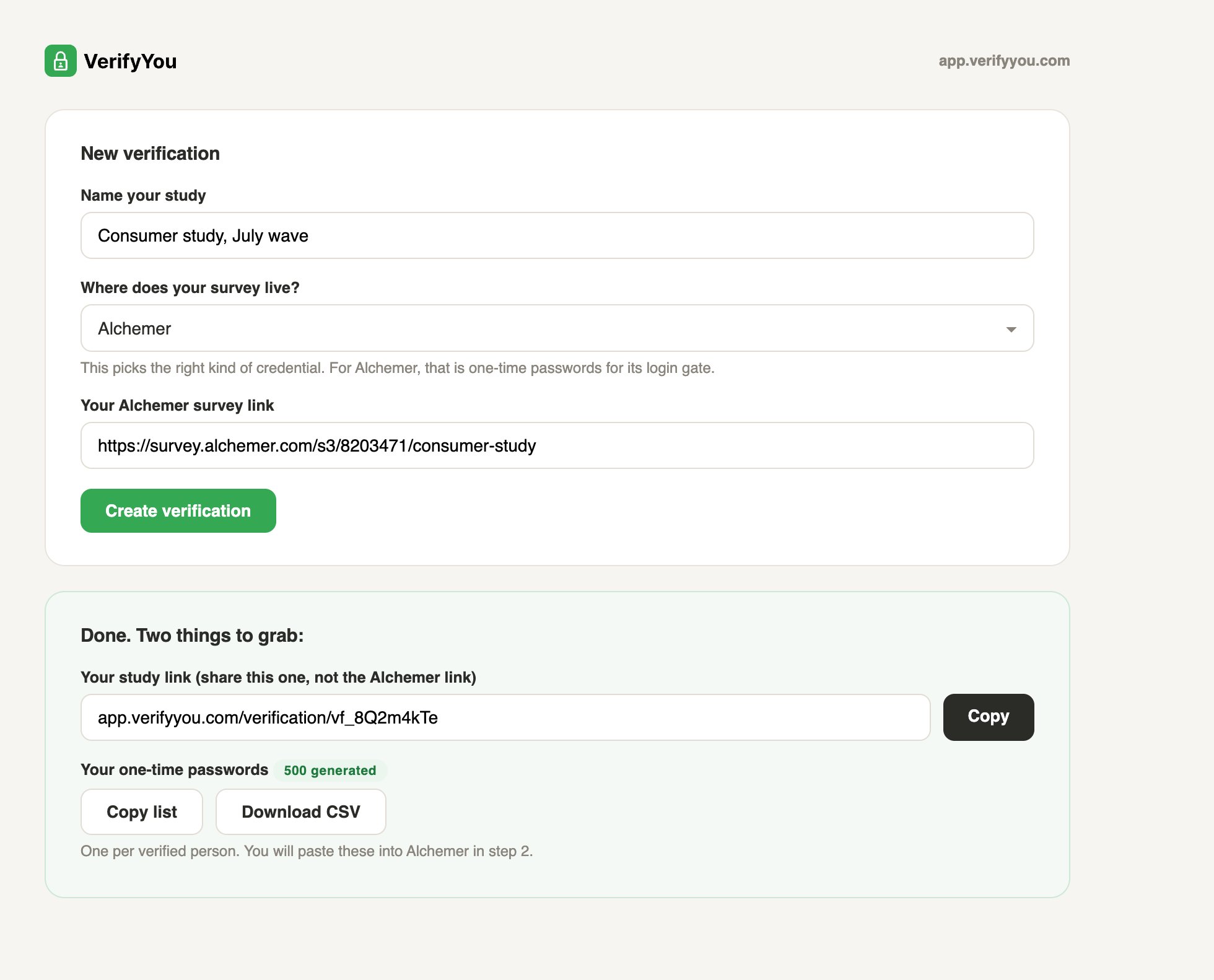
- Click New verification and name the study.
- Under “Where does your survey live?” pick Alchemer. That choice is how we know to create one-time passwords, the credential Alchemer’s own gate understands.
- Paste your Alchemer link and click Create verification.
You now have: your study link (the one you share, your Alchemer link stays private) and your one-time password list.
Add your passwords to Alchemer
On page 1 of your study.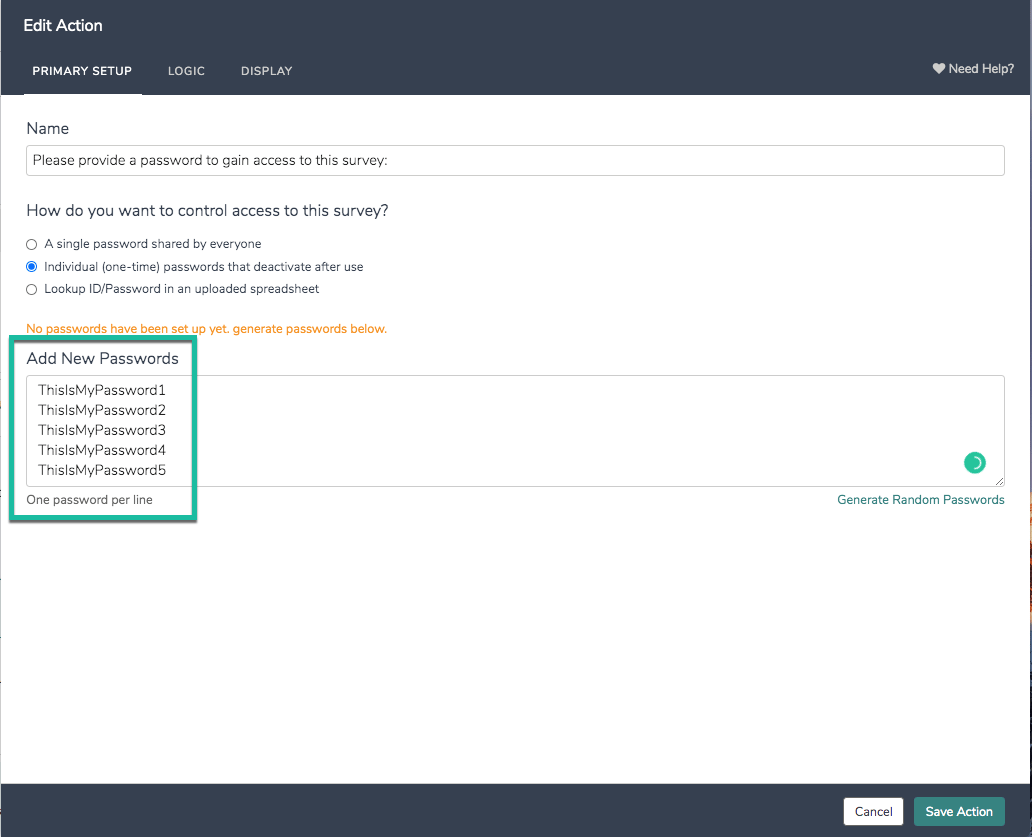
- Click Add New: Action and pick Login/Password.
- Choose “Individual (one-time) passwords that deactivate after use.”
- Paste your password list, one per line, and save. Keep this action alone on page 1.
You now have: a study that refuses anyone without a valid, unused password.
Set the password to fill itself in
In the same Login/Password action.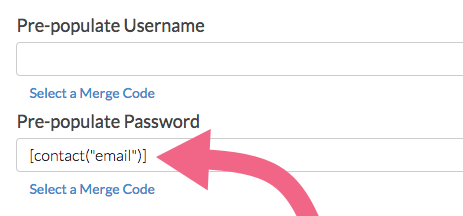
- Open the Display tab.
- Set Pre-populate Password to the merge code
[url("vypw")]and click Save Action. - Optional, for a fully invisible gate: on page 1’s Logic tab, turn on Automatically Submit Page. This is Alchemer’s own documented recipe for automatically logging a respondent in, and with it a verified respondent goes straight from the check to your questions without ever seeing the login page.
You now have: a gate that opens itself for verified respondents. The password lands in the box on its own, and with auto-submit on, they never even see the page.